01
Scan
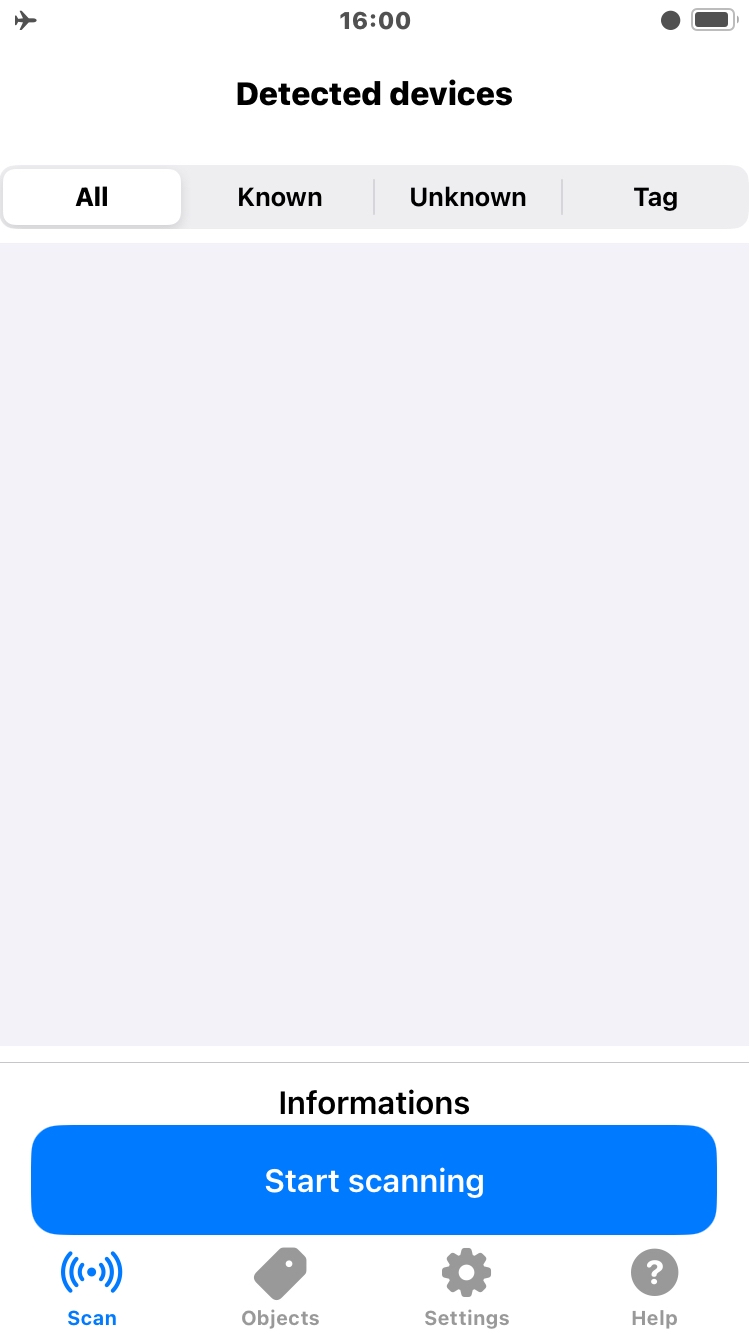
Placeholder for the scanning explanation.
iOS APPLICATION
Find nearby Bluetooth objects with intelligent BLE guidance.
Explore the appTHE PROBLEM

You can know that a Bluetooth device is nearby without having a practical way to locate it precisely. Object Radar explores the Bluetooth information available to iOS to turn that signal into useful proximity guidance.
HOW IT WORKS
From the first scan to the final proximity search, Object Radar guides the user through a simple three-step workflow.
Placeholder for the scanning explanation.
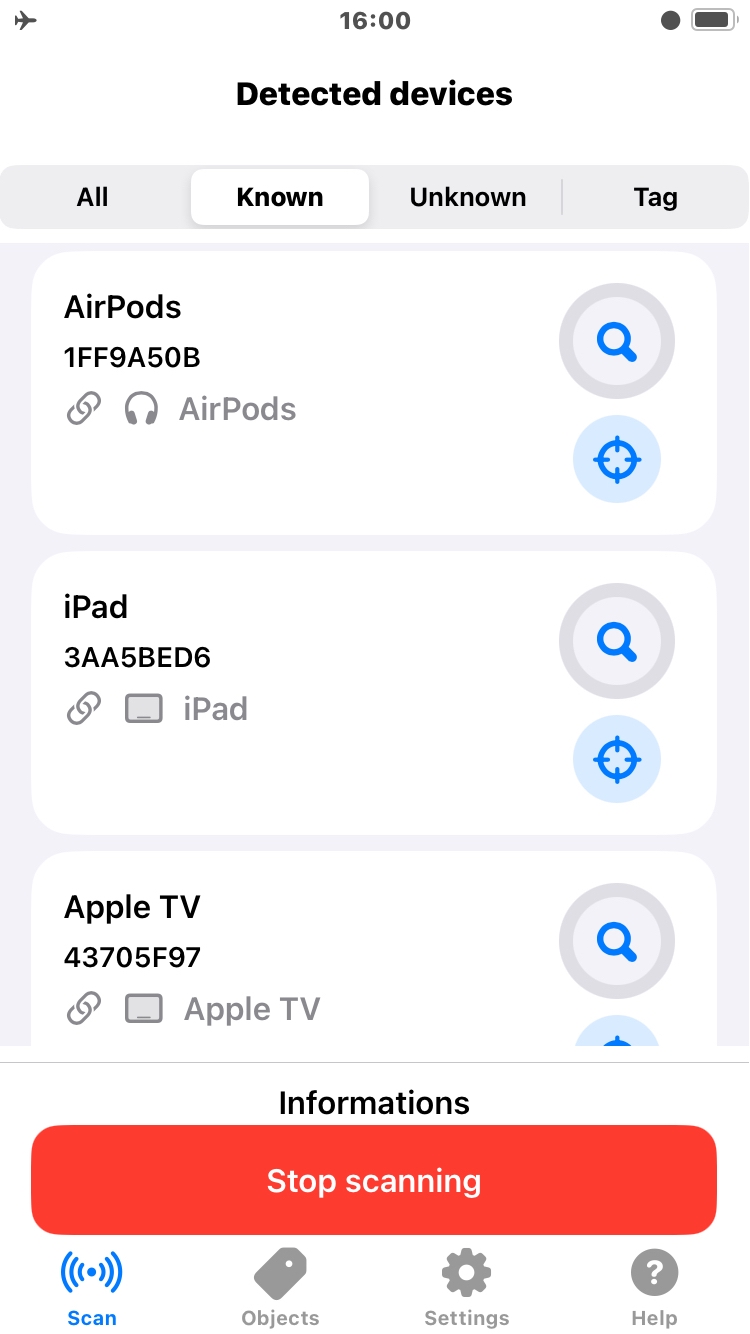
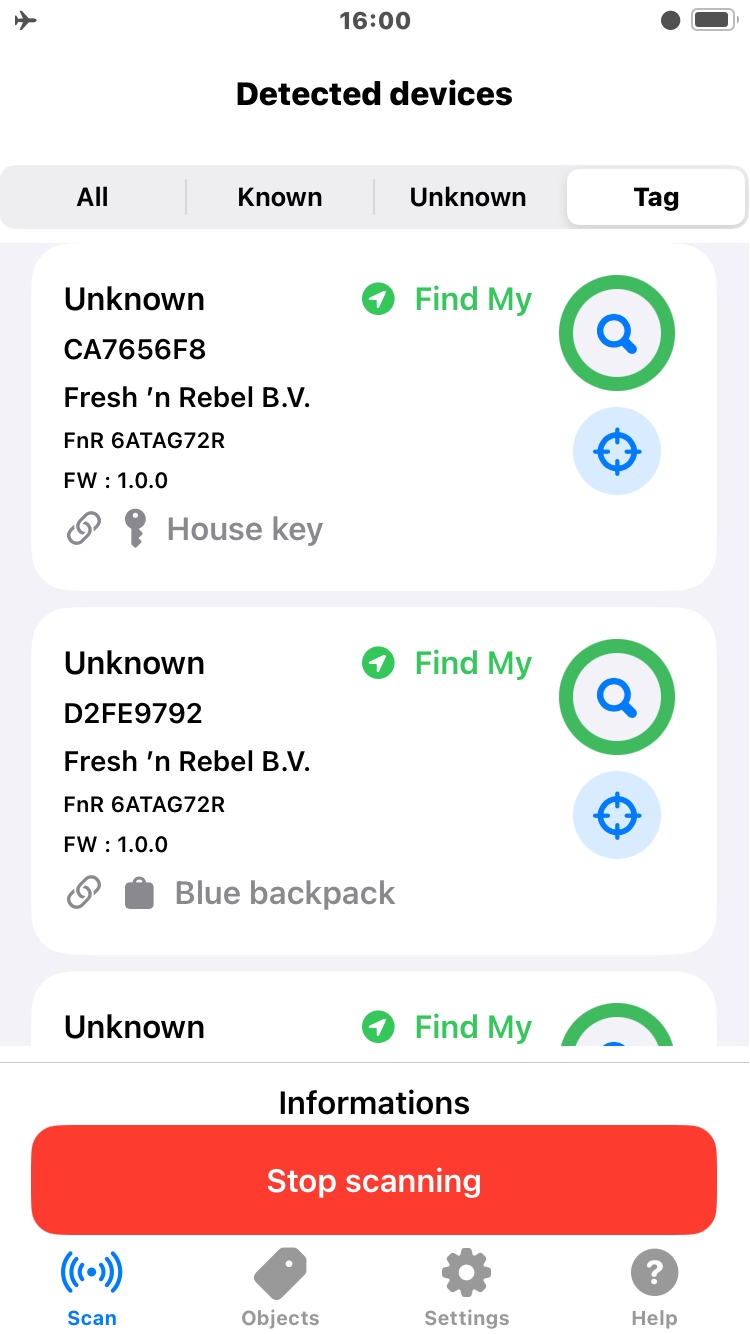
Placeholder for the device identification explanation.
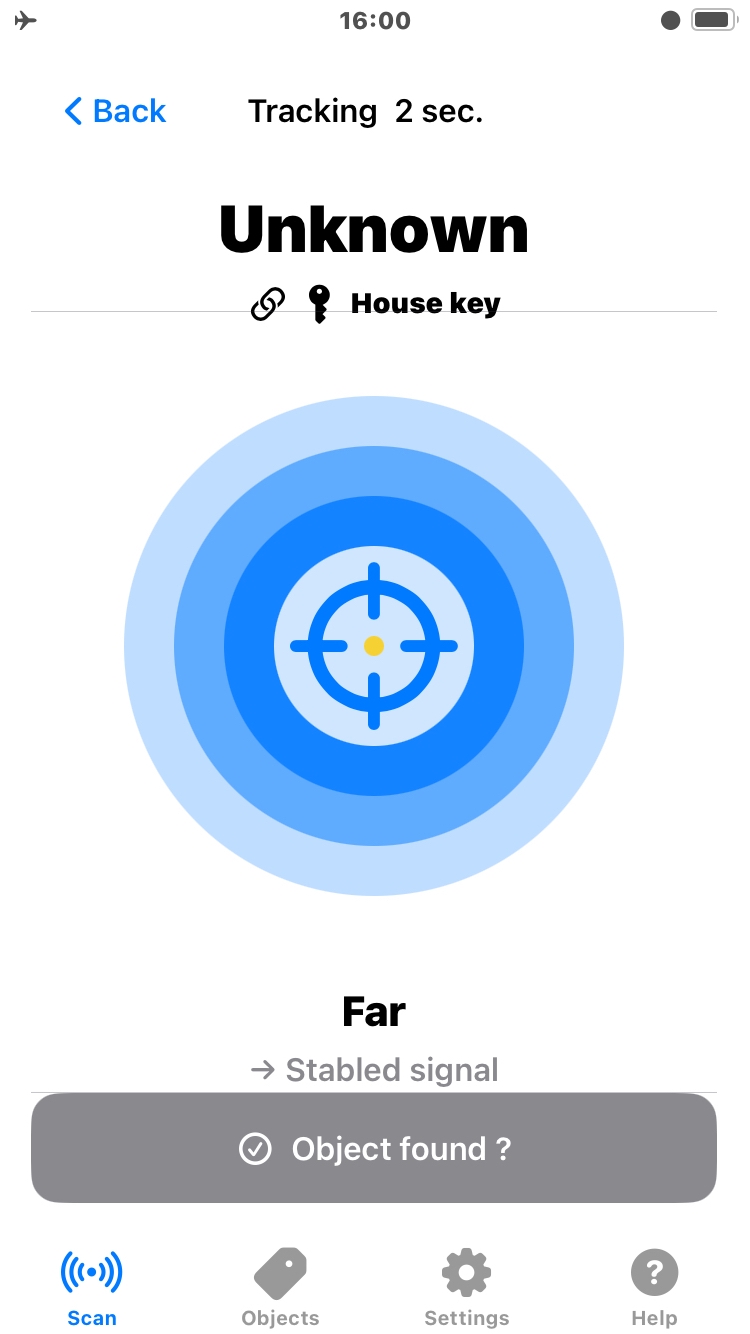
Placeholder for the proximity/tracking explanation.
USE CASES
Explore how ObjectRadar can help locate different types of nearby Bluetooth devices.

Find a nearby tracker when conventional location information is not enough.
Search for Bluetooth devices already associated with your iPhone.

Search for unknown or potentially unwanted Bluetooth trackers around your iPhone.
Explore nearby BLE devices beyond dedicated tracking tags.
FEATURES

Placeholder feature description.
Placeholder feature description.

Placeholder feature description.
Placeholder feature description.

Placeholder feature description.

Placeholder feature description.
LIMITATIONS
Bluetooth signal strength can help estimate proximity, but walls, furniture, orientation and other environmental factors can affect the result.
PRIVACY
ObjectRadar is designed around local processing so the Bluetooth information used for the search can remain on the user's device.
FAQ

ObjectRadar scans nearby Bluetooth Low Energy advertisements and analyzes the information made available by the devices. Detection depends on the device, its advertising behavior and the information exposed by its Bluetooth protocol.
The application observes changes in Bluetooth signal strength while you move. These changes can indicate whether you are getting closer to or farther from a device, but they cannot provide a precise distance.
A device may not advertise continuously, may use a protocol that does not expose enough information, or may be affected by Bluetooth and environmental limitations.
Bluetooth signal strength is affected by distance, obstacles, reflections, device orientation and the surrounding environment. Proximity guidance should therefore be understood as an indication rather than an exact measurement.
RESOURCES

CREDITS & LICENCES

Nearby location and map-based proximity guidance.
Bluetooth tracking tag and nearby device search.
Paired Bluetooth devices that can be searched for when they are nearby.
Nearby Bluetooth Low Energy devices and accessories.
BLE scanning for nearby Bluetooth devices and accessories.
Device identification and association within the ObjectRadar workflow.
To estimate time inteval.
Proximity guidance based on Bluetooth signal information.
Association between a detected device and an identified object.
Association not updated between a detected device and an identified object.
Association updated between a detected device and an identified object.
Local processing without requiring a remote backend.
Privacy protection and secure handling of user data.
Icon used to represent Bluetooth functionality.
Answers to common questions about ObjectRadar and its capabilities.
Documentation and external resources related to the application.
Resources, icons and licenses used in the application.
Used to indicate a completed, validated, or successful item.
Used to provide a useful tip, recommendation, or additional information.
Used to highlight a warning, limitation, or potential issue.
Object category used in ObjectRadar
Object category used in ObjectRadar
Object category used in ObjectRadar
Object category used in ObjectRadar
Object category used in ObjectRadar
Object category used in ObjectRadar
Object category used in ObjectRadar
Object category used in ObjectRadar
Object category used in ObjectRadar
Object category used in ObjectRadar
Object category used in ObjectRadar
Object category used in ObjectRadar
Object category used in ObjectRadar
Used to donation for supporting the project.
DONATION

To support ObjectRadar, any donation is greatly appreciated. Thank you for your support.