
USE CASE INTRODUCTION
Find your Bluetooth tracker
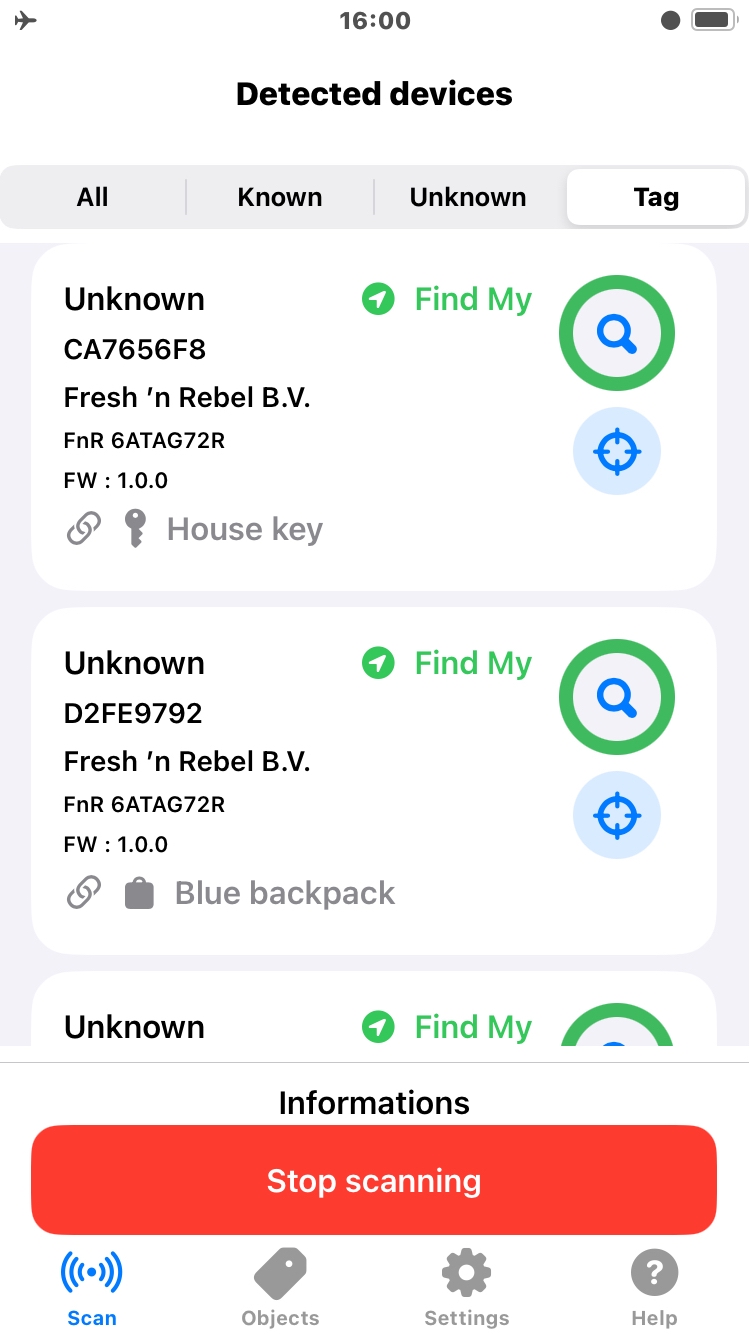
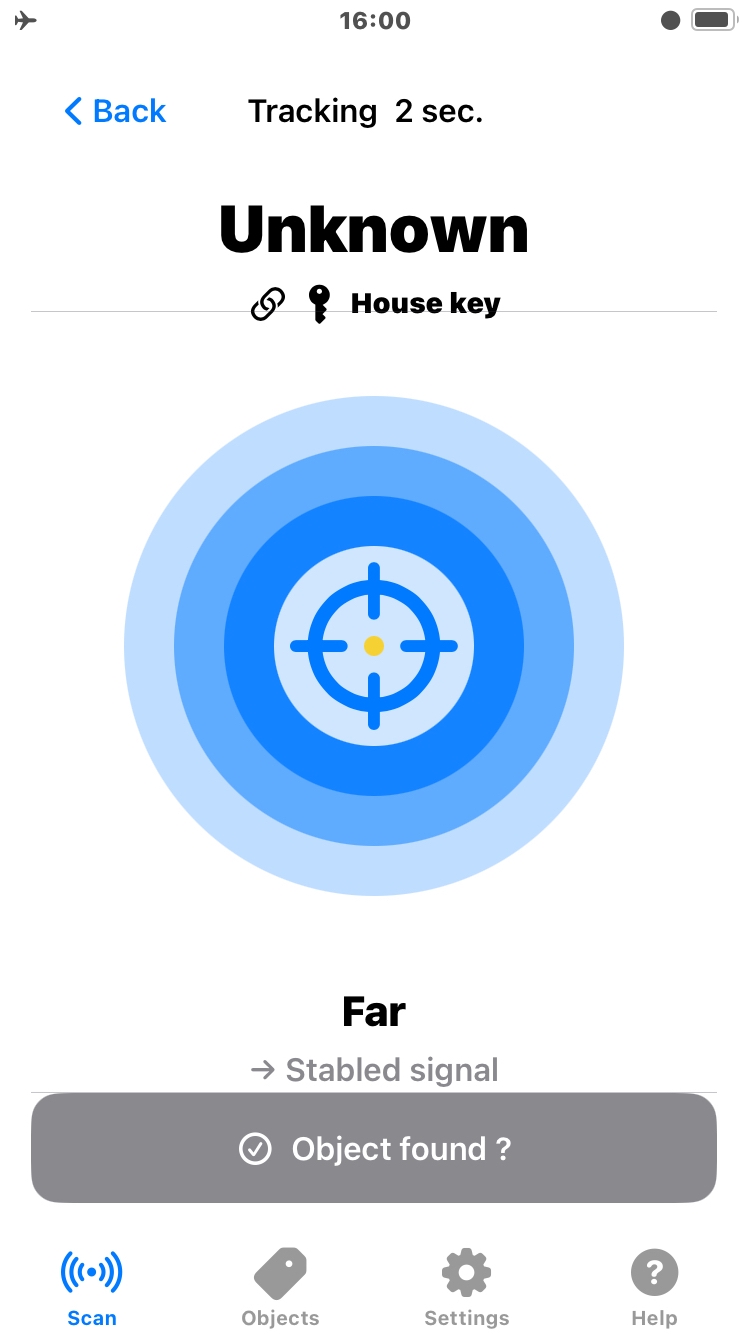
You know your tracker is nearby, but you need help narrowing down where it is.
ObjectRadar was created to help turn this approximate information into a practical local search.
COMPATIBLE TRACKERS
Which trackers can you use?
ObjectRadar is designed to detect Bluetooth trackers compatible with the Find My protocol and visible to iOS.
An untested model does not mean that it is incompatible with ObjectRadar.
This list is not exhaustive and does not imply any partnership with the manufacturers or products listed.
User feedback about product compatibility is greatly appreciated and helps us keep this list up to date.
View compatible tracker list
BEFORE YOU START
Understand what the indicators mean
A few simple points will help you understand the search results.
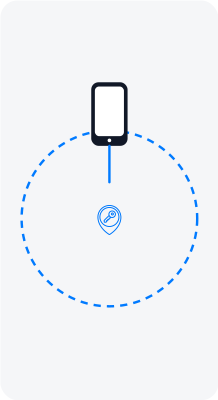
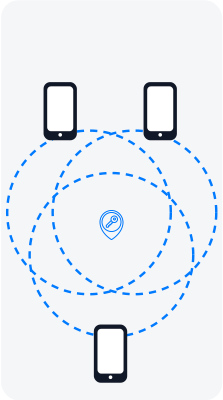
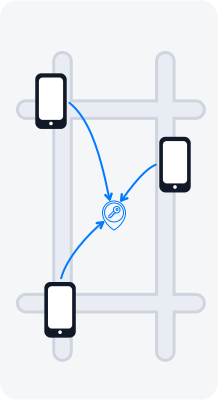
The location shown by Find My is the location of the device that detected the tracker. It is not necessarily the tracker's exact location.
The detecting iPhone does not give an exact tag position.
Multiple detections can narrow the search area, but do not prove an exact position.
Why can the displayed location be different?
A tracker can be detected by a nearby Apple device. The reported location therefore gives you a useful starting area rather than an exact position.
RSSI indicates the relative strength of the Bluetooth signal. A stronger signal can help you determine whether you are moving in the right direction, but it cannot provide a reliable distance.
Move — wait — compare — repeat — take your time.
Why can the signal change unexpectedly?
Walls, furniture, vehicles and other objects can affect Bluetooth signals. Compare several measurements instead of relying on a single reading.
The tracker may not transmit continuously. The interval between received advertising frames can vary.
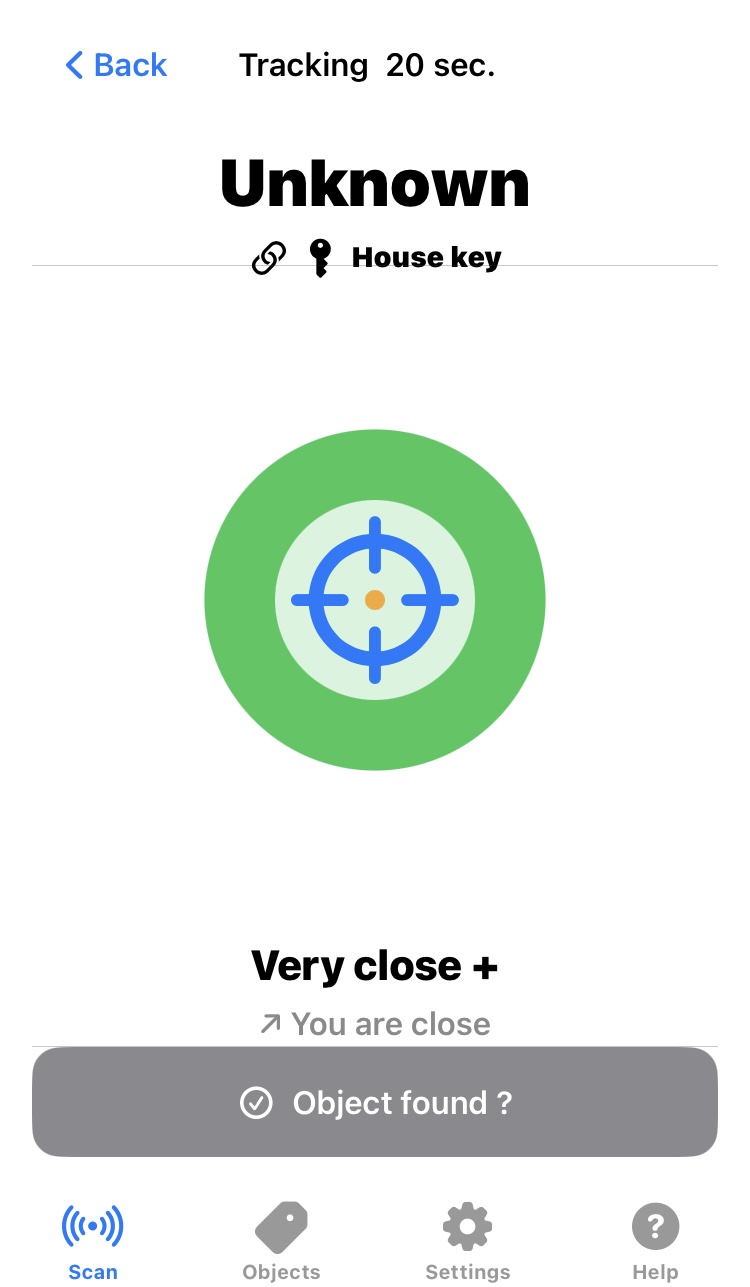
What does the dot and the ring around the target mean?
The dot indicates the interval between received advertising frames.
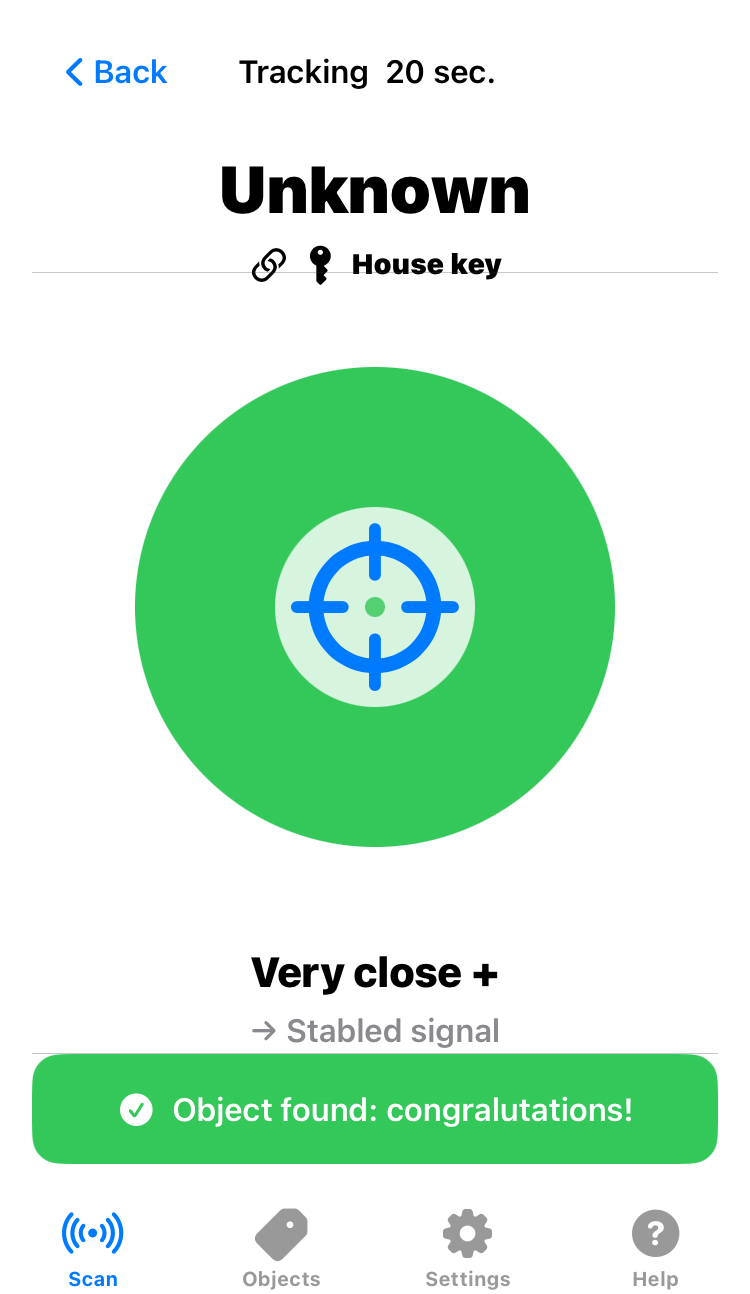
Blue rings represent the search levels, while the two green levels indicate very close proximity. The ring color does not represent distance.
If you own several tags, temporarily move the known tags away from the search area when possible. This reduces the number of nearby devices and makes it easier to identify the tag you are looking for.
ObjectRadar may detect a Find My-compatible tag that does not belong to you. A detected tag is not necessarily your tag.
ObjectRadar is designed to detect Bluetooth trackers compatible with the Find My protocol and visible to iOS.
Why might a tracker not be detected?
ObjectRadar cannot detect or display a device that is not compatible with the Find My protocol, is not authorized for use with it, or is filtered by iOS. ObjectRadar does not bypass Apple's device compatibility or access restrictions.
ASSOCIATION
Search for an object, not a number
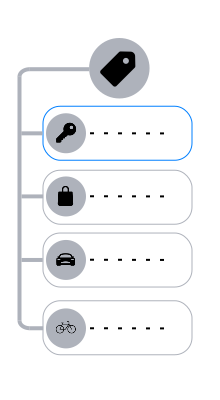
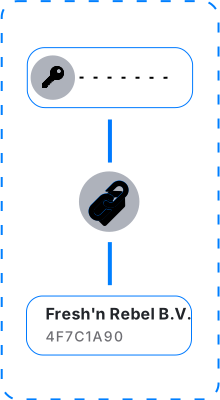
ObjectRadar associates a detected tracker with an object you know.
Instead of searching for an unknown Bluetooth device, you can search for an object such as your keys, bag or other personal item.
Why is this useful?
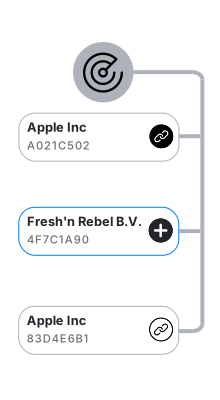
A detected tracker is initially associated with the object you believe it belongs to. If the association is wrong, you can correct it at any time — before continuing the search or after discovering that you found the wrong item.
Show diagrams: how to create an association ?
Add your objects in advance so you are ready to find them when needed or create them directly into a device card
Create an association between an object and a device
Add an association and see whether the current association is up to date
Some trackers periodically change the Bluetooth identifier used for advertising.
Why can a tracker temporarily disappear from the scan?
A tracker may change its advertising identifier during a long search. Restarting the scan does not require you to associate the object again. When the same device UUID is detected again, its existing object association is retained.
HOW IT WORKS
[Number] simple steps
Title
(Short descritpion of the step)
(Describe the step with more informations)
xxx
Title
(Short descritpion of the step)
(Describe the step with more informations)
Show screenshot
Title
(Short descritpion of the step)
(Describe the step with more informations)
Show screenshot
Title
(Short descritpion of the step)
(Describe the step with more informations)
xxx
Show screenshot
Title
(Short descritpion of the step)
(Describe the step with more informations)
Show screenshot
Title
(Short descritpion of the step)
(Describe the step with more informations)
xxx
Show screenshot
LIMITATION(S)
Title of the limitation(s)
(Short descritpion of the step)
(Describe the limitation(s) with more informations)
xxx
xxx
xxx
Q1
R1
Q2
R2
Q3
R3
Q4
R4
Q5
R5
Q6
R6
Q7
R7
OBJECTRADAR
Ready to start searching?
Open ObjectRadar and start your search
Download on the App Store